Claude Cowork: The Complete Guide (2026)
Claude Cowork is Anthropic's autonomous agent that runs directly on your desktop, transforming Claude from a conversational chatbot into a task execution engine. Launched in January 2026 as a research preview, Cowork lets you describe desired outcomes and step away while Claude handles multi-step workflows, file manipulation, research synthesis, and browser automation. This guide covers everything you need to get started and master Cowork in 2026.
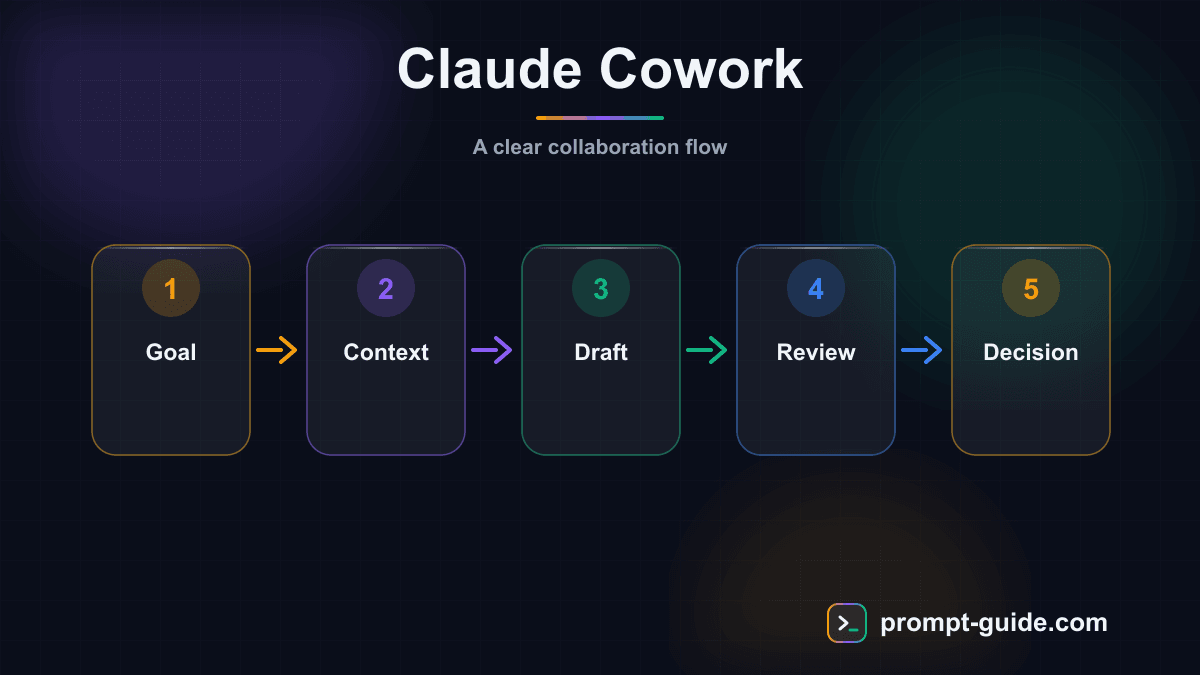
What is Claude Cowork?
In traditional Chat mode, you maintain a conversation: you ask, Claude responds, and you orchestrate each step. Cowork fundamentally changes this paradigm. Instead of directing each micro-step, you describe a final outcome and let Claude plan, execute, and deliver the result autonomously.
Cowork runs locally on your machine through the Claude Desktop application. Operations execute inside an isolated virtualized Linux environment using Apple's native virtualization framework (AVF) on macOS. This architecture ensures Claude cannot access directories you haven't explicitly authorized -- the boundaries are architectural, not software-based.
Setup and First Configuration
Prerequisites
- A Mac running macOS (Windows support announced but not yet available as of March 2026)
- Claude Desktop from
claude.com/download - A paid subscription: Pro ($20/mo), Max ($100-200/mo), Team, or Enterprise
Installation Steps
Download Claude Desktop
Download and install Claude Desktop from the official site.
Log in
Log in with your Claude account.
Switch to Cowork mode
Switch to Cowork mode using the tab at the top of the app (Chat | Code | Cowork).
Select a working folder
Select a working folder -- create a dedicated directory like ~/Cowork-Projects.
Write your first task
Write your first task description (describe an outcome, not a question).
Global Instructions
Global instructions persist across all sessions and apply to every task. Access them in Settings > Cowork > Edit next to "Global instructions." Include your role, preferred formats, tone, data handling rules, and any recurring organizational standards.
Writing Effective Cowork Prompts
A good Cowork prompt answers three fundamental questions:
- What does "done" look like? (the deliverable)
- What context does Claude need? (files, background info)
- What constraints can't it guess? (format, tone, length, audience)
Skills: Structured Reusable Workflows
Skills are structured, reusable workflows that Claude invokes automatically when relevant or manually via the / command. Each Skill represents a specific capability: summarizing documents, cleaning datasets, extracting structured data, or generating reports.
Creating Custom Skills
Skill Creator wizard
An interactive tool that generates the Skill file for you.
Manual creation
Write a Markdown file in .claude/skills/ in your working folder.
Community import
Download and customize Skill templates from GitHub.
Tip: Multiple Skills can work together. A task involving research followed by document creation will draw on both a research Skill and a writing Skill seamlessly.
Plugins: Pre-Configured Solution Packages
Plugins bundle multiple Skills, connectors, and sub-agents into pre-configured solution packages. For example, a "Sales Outreach" plugin might include Gmail connectivity, Google Sheets integration, Tavily web search, and embedded Skills for prospect analysis and email drafting.
Access plugins via Customize > Browse plugins in the sidebar. Anthropic provides official plugins for sales, finance, legal, marketing, HR, engineering, design, operations, and data analysis. After installing, click Customize on any plugin to adapt its Skills and connectors to your specific workflow.
Connectors: Integrating Your Tools
Connectors let Cowork interact with external services via the Model Context Protocol (MCP). Available connectors include Google (Gmail, Drive, Calendar), Microsoft (Outlook, OneDrive, M365), Slack, Notion, Figma, GitHub, Linear, DocuSign, and Tavily MCP for web search.
Connect a service via Customize > Connectors, authenticate with OAuth, and the connector becomes available for your tasks. For services without pre-built connectors, deploy a custom MCP server and connect Cowork to it.
Good to know: Claude follows a tool selection hierarchy: direct connectors first (fastest), then browser automation, then Computer Use as a last resort.
Scheduled Tasks: Recurring Automation
Scheduled tasks transform Cowork into a continuous automation system. Create them by typing /schedule in an existing task or through the Scheduled tab in the sidebar. Specify a name, description, prompt, and frequency (hourly, daily, weekly, or weekdays).
Daily email briefings
Summarize overnight emails, calendar events, and Slack messages.
Weekly status reports
Aggregate completed tasks and upcoming priorities.
Competitive intelligence
Regular monitoring of market news and competitors.
Data processing
Recurring import, cleanup, and standardization.
Tasks leverage all of Cowork's capabilities including connectors, plugins, Skills, and Computer Use.
Important: Scheduled tasks only run while Claude Desktop is open and your Mac is awake. Missed tasks execute automatically when the app reopens.
Computer Use: Direct Desktop Control
Computer Use lets Claude interact with your actual desktop -- clicking, typing, navigating applications -- when connectors and browser automation aren't enough. Enable it in Settings > General > Computer Use.
Key safety measures:
- Claude asks for explicit permission before using Computer Use
- Add sensitive apps (banking, healthcare, crypto) to the blocklist
- Deletion protection requires your approval before removing files
- Computer Use operates outside the VM, so stronger safeguards apply
Good to know: Best for straightforward, predictable interactions with applications that lack APIs. Not ideal for complex multi-step workflows.
Dispatch: Remote Control from Your Phone
Dispatch, launched March 2026, turns your phone into a remote control for Cowork. Send a task from your mobile, Claude executes it on your desktop, and results appear on your phone.
Setup
Enable Dispatch
Enable Dispatch in Claude Desktop.
Open mobile app
Open the Claude mobile app.
Pair devices
Scan the QR code to pair devices.
Each Dispatch task spawns an independent sub-agent on the desktop. You can submit multiple tasks in parallel. Your Mac must stay awake for execution.
Projects: Persistent Workspaces with Memory
Projects, introduced in March 2026, solve Cowork's biggest limitation: no memory between sessions. A Project bundles files, instructions, scoped memory, scheduled tasks, and dedicated Skills into a self-contained workspace.
As you work within a Project, Claude automatically generates and stores memories: your preferences, decisions made, patterns identified, and key project details. Memory is stored locally, isolated per project, and persists across interruptions. You can view, edit, and delete memories at any time.
Tips and Best Practices
Optimize Your Prompts
- Describe outcomes, not steps: say "Deliver a 5-page PDF report" not "Open an editor, write a title..."
- Provide rich context: include example deliverables, style guides, reference docs
- Specify invisible constraints: output format, tone, target audience, max length
- Use folder instructions: create
.claude/instructions.mdfor recurring project folders
Manage Token Consumption
Cowork tasks consume significantly more tokens than Chat conversations. Monitor usage in Settings, prefer Chat for simple tasks, break complex tasks into sub-tasks, and invest in global instructions to avoid repeating context.
Security Best Practices
Important: Follow these security best practices to protect your data and system.
- Use a dedicated working folder -- never grant access to your entire home directory
- Add sensitive applications to the blocklist
- Prioritize connectors over screen automation
- Watch for unusual patterns and stop tasks if something looks wrong
Current Limitations
- macOS only (Windows coming soon)
- Machine must stay awake for task execution
- Variable reliability on complex multi-step workflows
- High token consumption for autonomous tasks
- Local-only memory -- no cross-device sync
- Occasional connector instability with some services
Getting Started Checklist
Start simple
A document synthesis or file organization task.
Configure global instructions
Configure your global instructions from day one.
Connect your main tools
Connect Gmail, Google Drive, Slack.
Create your first Project
Create your first Project for persistent memory.
Explore plugins
Explore plugins for your field.
Add a scheduled task
Add a scheduled task for a recurring workflow.
The key to success with Cowork is thinking in terms of outcome delegation, not step direction. Describe what you want, provide the necessary context, and let Claude orchestrate the execution.
Related Prompts
Prepare a complete meeting briefing
This prompt turns Claude Cowork into a meeting prep assistant. By analyzing your project folders, previous meeting notes, and documents, it generates a complete briefing: context, agenda, participant profiles, and strategic questions. Everything is based on your actual documents, not generalities. The briefing is saved as a file, ready for review.
Build a tech watch system
This Cowork prompt structures your tech watch by analyzing your scattered sources (saved articles, notes, newsletters, bookmarks). Claude identifies strong trends and weak signals, evaluates emerging tools, and checks updates for your tech stack. The personalized training plan helps prioritize your skill development.
Turn a blog post into LinkedIn posts
This Cowork prompt reads your blog post directly and splits it into 5 distinct LinkedIn formats: controversial hook, framework, storytelling, statistic, and carousel. Each post is optimized for the LinkedIn algorithm with proper word count, targeted hashtags, and suggested publication slots. You get a full week of LinkedIn content from a single article.
Write a newsletter from my raw notes
This prompt transforms your raw research notes into a professional, structured newsletter. Cowork analyzes your raw files (notes, bookmarks, captures) to identify strong topics and organize them into engaging sections. The result includes A/B testable email subjects, commented curation, and closing CTAs to maximize engagement.
Convert my notes into structured documentation
This Cowork prompt gathers your scattered notes from a folder and transforms them into professional documentation. Claude identifies themes, detects inconsistencies and gaps, then produces a structured document with table of contents and cross-references. Incomplete sections are flagged for completion. Every piece of information cites its original source.
Analyze my website's SEO performance
This Cowork prompt transforms your raw Google Search Console exports into a structured, actionable SEO audit. Claude identifies quick-wins (pages in position 5-20 to optimize), problems (cannibalization, declining pages) and generates recommendations prioritized by impact and effort. The CSV tracking table enables continuous monitoring.
Practice Exercises
Providing Context
Master the art of giving the right context to AI for relevant results.
Role Prompting
Use role assignment to get expert-level responses.
Structured Output / JSON
Get structured JSON responses that can be processed by code.
System Prompt Design
Design a complete system prompt for a professional chatbot.
Prompt Chaining
Break down complex tasks into chains of connected prompts.
Related guides
Continue your learning
You've finished this guide. Here's how to go further.
Practice what you learned
Interactive exercises to sharpen your prompting skills
Get new guides every week
Join our newsletter and never miss new content.